

Pay your trades and hand them a real 1099-NEC
Keep a clean record for every 1099 trade you hire — track what you owe versus what you've actually paid, watch the 1099 threshold automatically ($2,000 for tax year 2026 and later, $600 for earlier years), and when January comes, stamp the official IRS Form 1099-NEC and hand each sub their copy. Their tax ID lives in the device Keychain, masked to the last four, never in the cloud database.
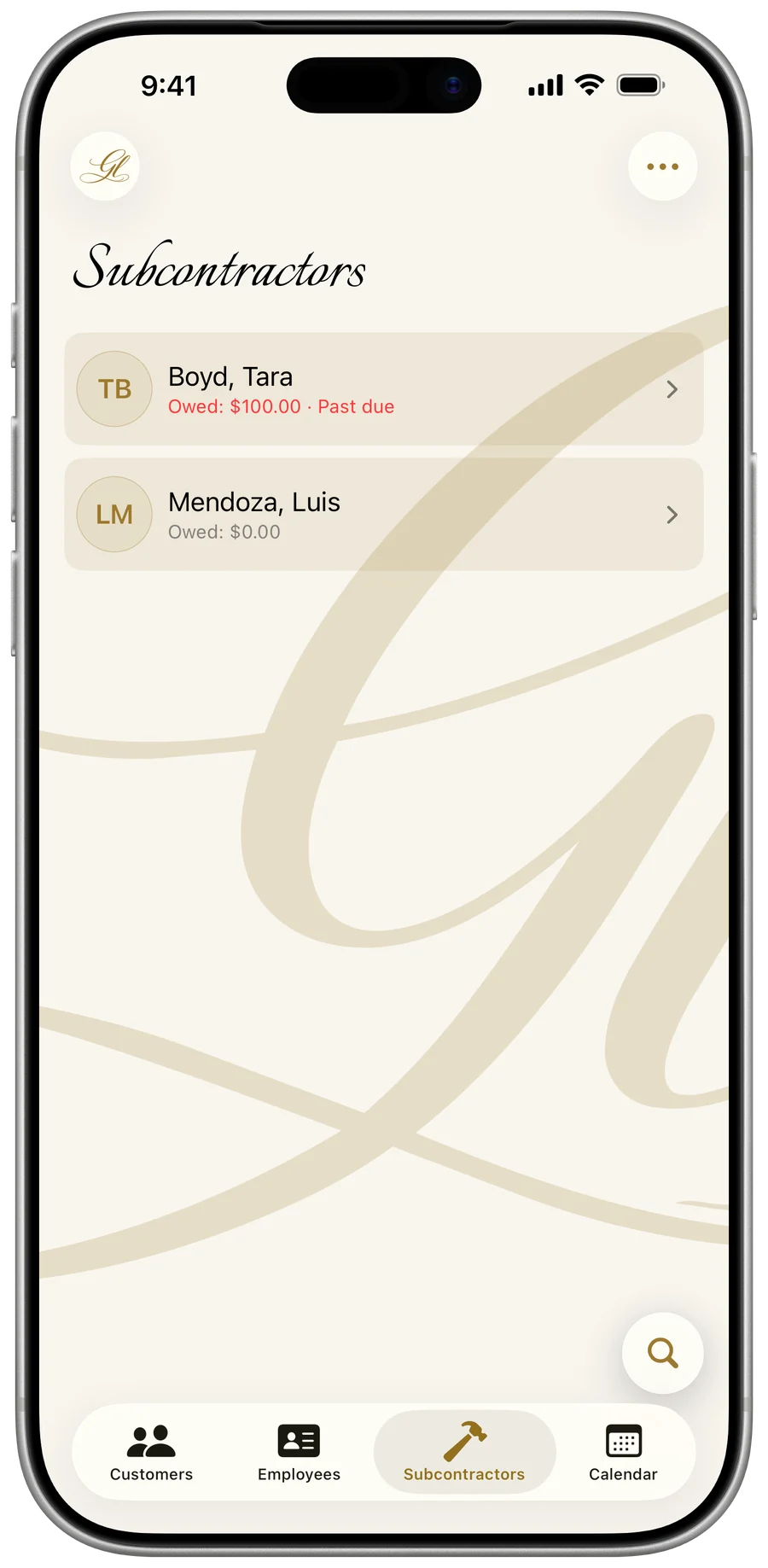
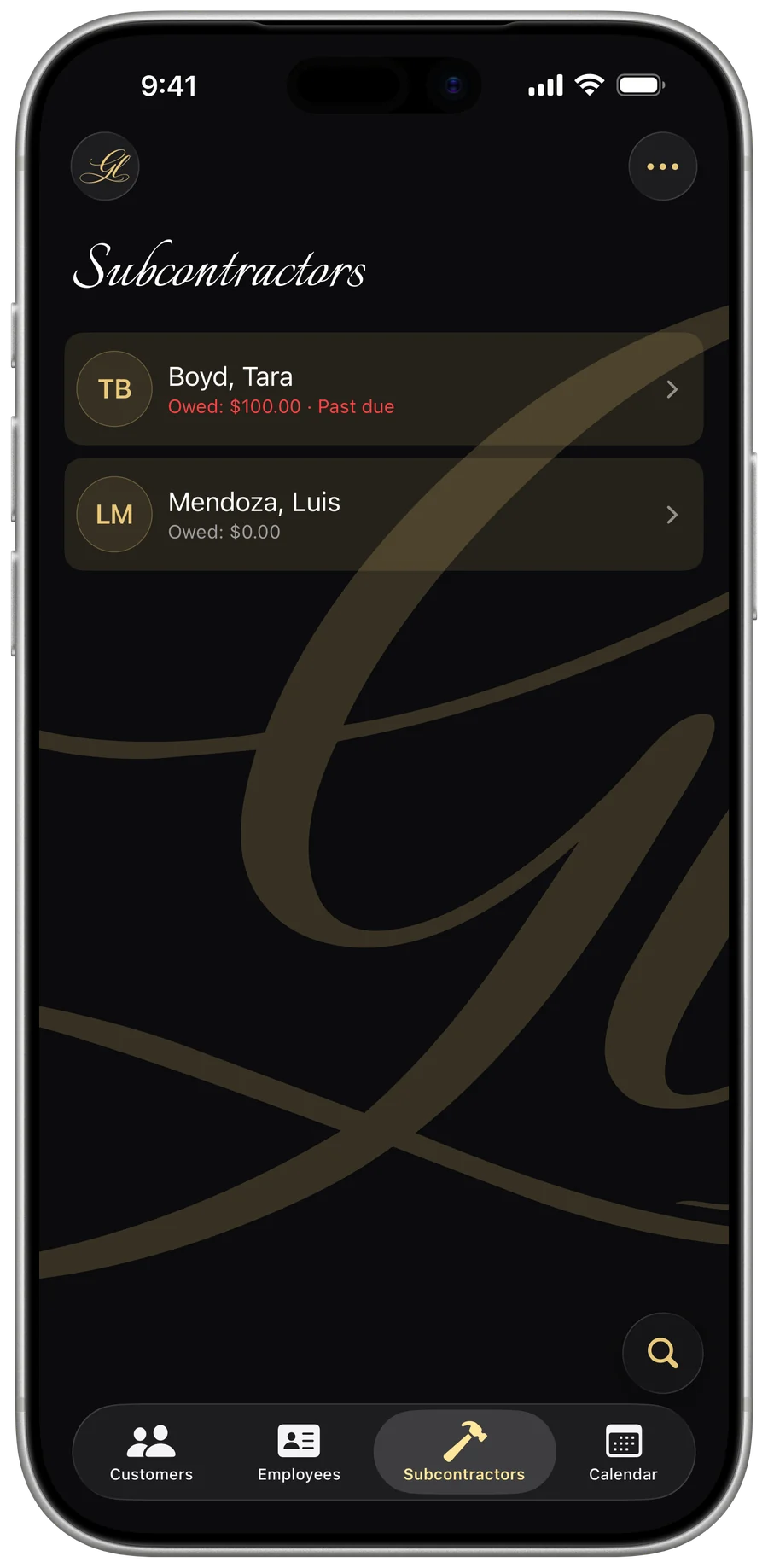
Add a subcontractor
Every record holds a name or business, contact details, an optional hourly rate, and their tax ID from their W-9 — typed in or pulled straight from your phone's Contacts.
- Open the Subcontractors tab and tap + (top right). On iPad, use the + in the Subcontractors column.
- Optionally tap “Import from Contacts” to pull a name, business, phone, email, and address from your contacts.
- Fill in a first/last name and/or a Business name — at least one is required to save.
- Add email and phone (the phone field auto-formats), and enter the address by hand or with the address-search autocomplete.
- Optionally set an Hourly rate, then tap Save.
- Business name, when set, becomes the 1099 payee.
- Hourly rate is optional — leave it at 0 to log flat amounts only.
- Active / Inactive toggle keeps old subs around without cluttering the list.
- Multi-line Notes for anything you want to remember.
Free to start: up to 2 subcontractors on the free tier, unlimited with a subscription.
Track what you owe — and what you've paid
Log each amount as you go. An entry can sit as OWED until you actually pay it, or be recorded as paid right away. The difference matters: owed entries are tracked for your own balance but don't count toward the 1099 figure until they're marked paid.
- Open a subcontractor and, in the Payments section, tap Record (the + on the balance card).
- If the sub has an hourly rate, enter Hours and the Amount fills automatically at their rate — otherwise type an Amount directly.
- Set the Work date and, if you like, describe what it was for and tag the Job / customer it was for.
- Leave the Paid toggle off to track it as still owed, or turn it on and set the “Paid on” date and Method.
- Tap Save.
- Payment methods: Cash, Check, Card, Bank transfer, Zelle, Venmo, Cash App, Apple Cash, PayPal, Google Pay, Square, Stripe, or Other.
- Tag an entry to a customer/job to get true cost-per-job that includes subcontractor labor.
- Edit or delete any entry later.
The 1099 total is cash-basis — only money actually paid counts. An amount you still owe is never included until you mark it paid.
The 1099 threshold, watched for you
The app totals what each sub was actually paid in the year and flags everyone who crosses the IRS 1099-NEC reporting threshold for that tax year — $2,000 for 2026 and later, $600 for earlier years — so you're not the one keeping a running tally in your head.
- Open the Subcontractors tab — the header shows total paid for the selected year and how many subs need a 1099-NEC.
- Use the “PAID IN <year>” menu in the header to switch tax years (the current year back through four prior years).
- Scan the list: any sub at or above the year's threshold shows a “1099-NEC due” subtitle; subs you still owe show “Owed $X.”
- Open a sub to see their per-year paid total and a “1099-NEC due” badge on the balance card once they cross the threshold.
- The header auto-opens to the most recent year that actually has payments.
- Per-sub year-to-date paid totals show right in the list row and on the detail card.
- The threshold follows the tax year you're viewing — $2,000 for 2026 and later, $600 for earlier years — and it's cash basis, so owed-but-unpaid never counts toward it.
Generate a real IRS Form 1099-NEC
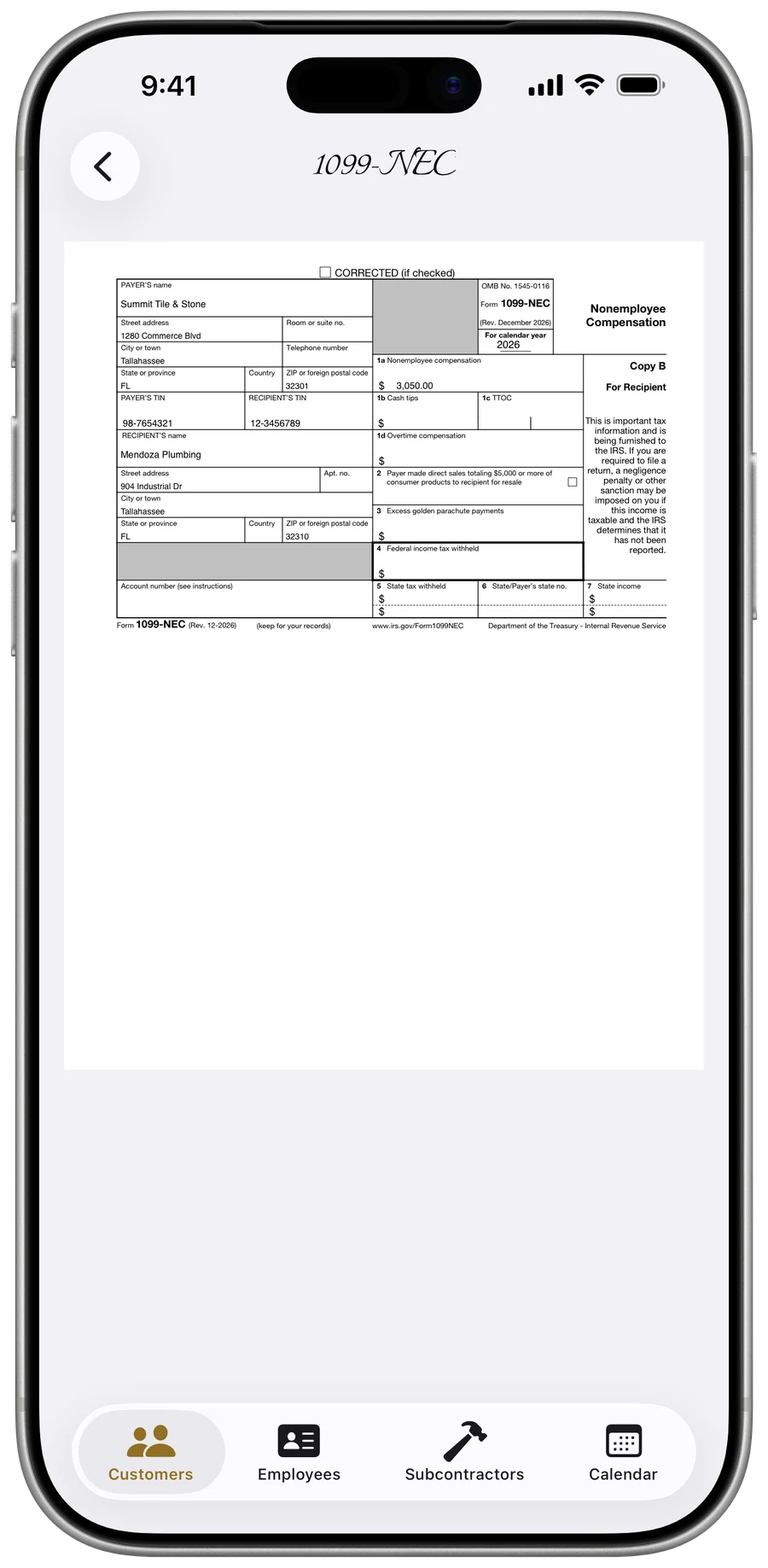
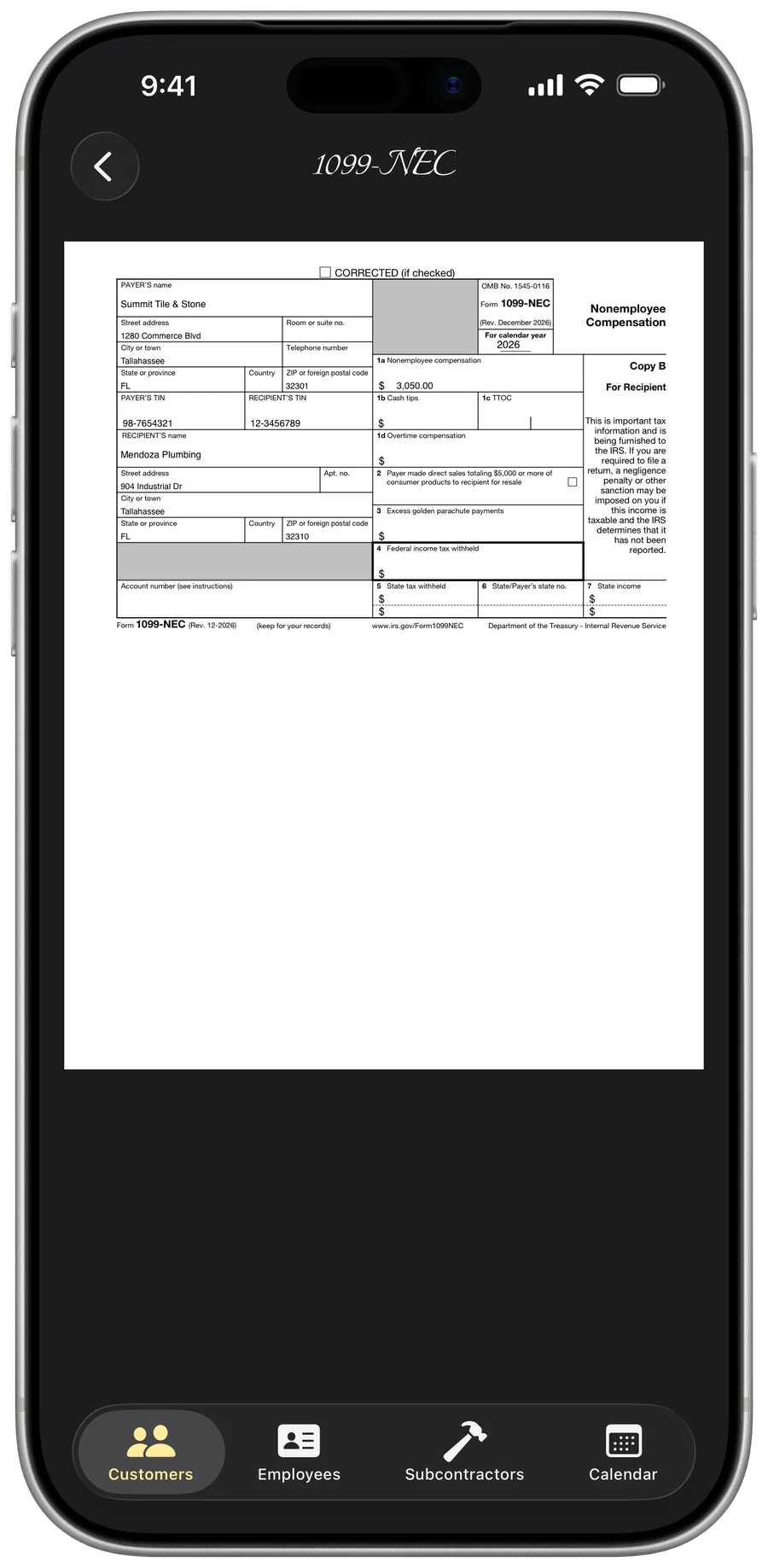
This isn't a generic look-alike. The app stamps your details, the recipient's details, both TINs, and the year's paid total onto the official IRS 1099-NEC template — the amount lands in Box 1a, Nonemployee compensation — and produces a flattened, shareable PDF.
- Open a subcontractor and, in the Tax section, tap “Generate 1099-NEC” — Face ID unlocks it first, since the form shows both full Tax IDs.
- Pick the Tax year — it defaults to last year, since a year's 1099-NEC is filed the following January.
- If anything's missing (your business name, your business Tax ID, or the sub's Tax ID), the screen lists it with shortcut buttons to fix the sub or your business details.
- Review the filled Copy B preview, using the sub's paid total for that year as Box 1a.
- Tap the share button (top right) to send or save the PDF.
- TINs auto-format on the form as SSN (3-2-4) or EIN (2-7), with a full 4-digit calendar year stamped.
- Live preview of the actual filled form before you send.
- A Retry button if generation ever fails despite complete data.
What you share is Copy B — the copy you give the recipient. Copy A is filed separately with the IRS; the app reminds you to keep a copy and file Copy A yourself.
Keep the sub's W-9 on file
Store each subcontractor's own W-9 right on their record — upload it once, see a checkmark, and share it whenever your accountant asks.
- Open a subcontractor and, in the Tax section, tap the “W-9 on file” row.
- Tap “Replace file” to upload their W-9 as a PDF or image — a checkmark and the file name then show on the card.
- Tap the share button to send the stored W-9, or preview it in-app.
- Tap “Remove W-9” (with a confirmation) to delete the uploaded file.
This stores the sub's own completed W-9 that they gave you — it doesn't fill out a blank W-9 for them. (Filling a blank W-9 for your own business lives in the Company area.)
Tax IDs kept genuinely secure
An SSN or EIN is sensitive, so the app treats it that way. You type it into a digits-only field that formats itself as you go, and it's written to the device Keychain — not the synced database — and shown masked to the last four everywhere after that.
- In the new/edit form, under “Tax details (for their 1099-NEC),” pick the Taxpayer ID type — SSN or EIN.
- Type the number — the field accepts digits only and formats as you type (SSN 123-45-6789, EIN 12-3456789).
- Tap Save; the TIN is written to the device Keychain.
- View it later masked as “•••• 1234” under the sub's More Info → Tax & pay.
- Number pad only — letters and symbols can't be entered, and digits aren't dropped under paste or autofill, so you can't end up with a wrong-but-valid-looking ID on a tax form.
- Stored in the Keychain (device data-protection, iCloud-Keychain synced), never in the CloudKit database.
- In the form the saved number stays masked behind a Face ID lock — tap it and authenticate (Face ID or your device passcode) to reveal or change it.
- Deleting a subcontractor automatically wipes their TIN from the Keychain.
If the secure write ever fails — say the device is locked — Save warns you instead of silently dropping the ID, and your other fields are kept.
Hand your accountant a tidy year-end package
When it's time to close the year, one tap bundles two CSVs for the tax year you've selected — a 1099 summary and a full payment ledger — ready to send straight to your accountant.
- Open the Subcontractors tab and pick the tax year in the header if needed.
- Tap the More (•••) menu in the top-right toolbar and choose “Year-End Report” — Face ID unlocks the export first, since the summary CSV includes full Tax IDs.
- Share or save the two generated CSV files.
- 1099 summary CSV: one row per paid sub with name, business, TIN type, TIN, address, total paid, and Yes/No on whether a 1099-NEC is required.
- Payment ledger CSV: one row per payment with sub, paid-on date, amount, method, and the “for” detail.
- Only subs actually paid in the selected year are included — owed-but-unpaid is excluded, consistent with the cash-basis 1099 figure.
- Files are named per year and carry a UTF-8 BOM so accented names render correctly in Excel.
Browse, search, and manage the record
Each sub's detail screen shows recent activity at a glance, with a full searchable history a tap away — plus the everyday housekeeping of photos, contacts, and edits.
- Open a subcontractor — the Activity card shows the five most recent entries, with OWED entries badged.
- Tap “View All” to open All Activity, then filter by All, This year, or a Custom date range.
- Search by detail, customer, payment method, or amount; the footer shows the total paid and entry count for the current filter.
- Use the avatar to set a profile photo, or the More (•••) menu to Edit or Save to Contacts.
- Search the subcontractor list itself by name, business, email, or phone.
- “More Info” gives a clean read-only summary — contact, address, masked tax ID, hourly rate, and notes.
- Delete a sub by swiping the row (iPhone) or using delete on iPad — which also clears their Keychain TIN.