

Run payroll for your crew without a payroll service
Keep your team in one place, log their time against the jobs they worked, and watch what’s owed add up on its own. The app tracks gross pay — hours, what’s owed, the next payday, and year-to-date totals — then hands your accountant clean CSVs at W-2 time. No payroll subscription, no tax math, no guesswork about who’s owed what.
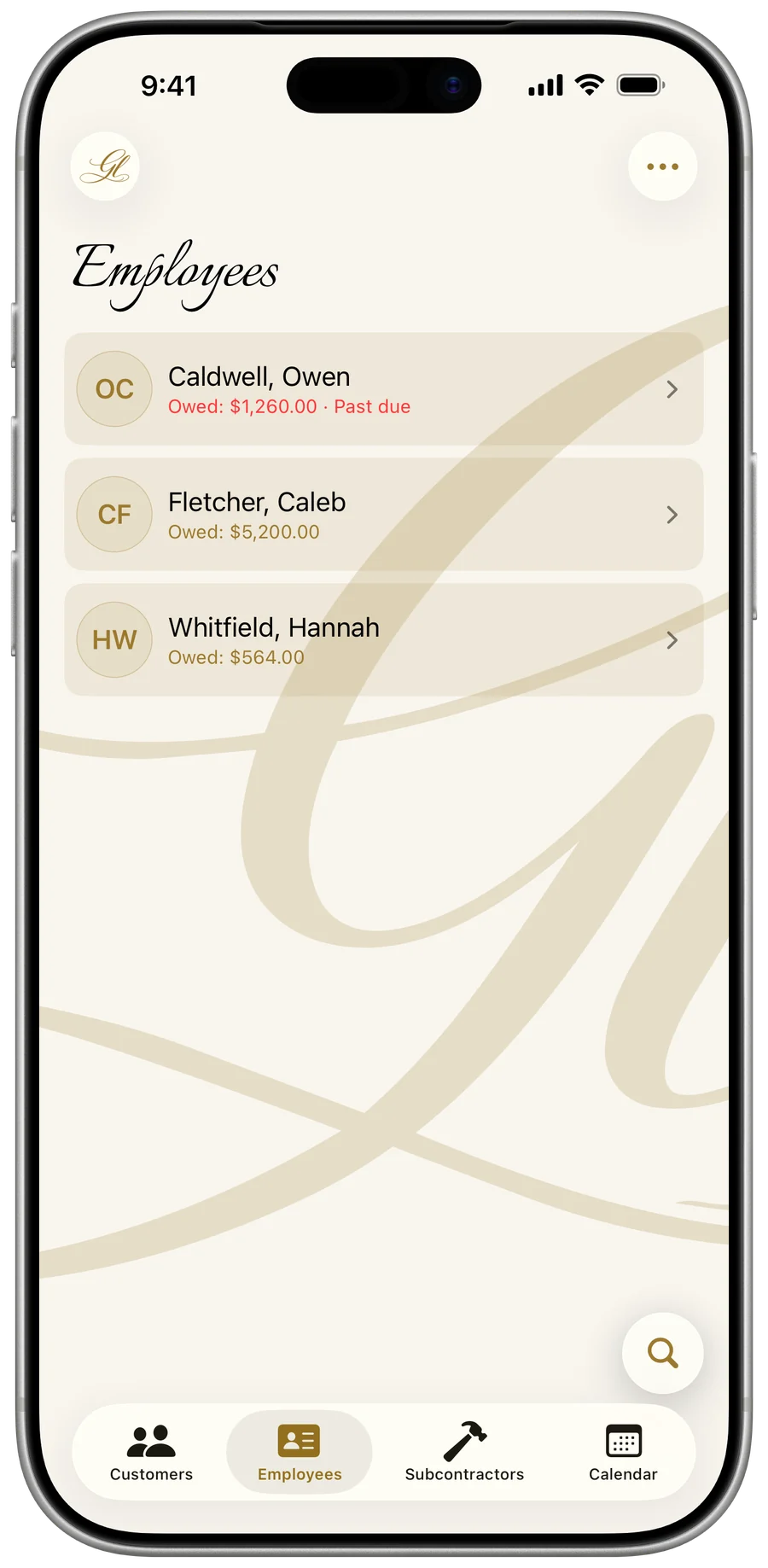
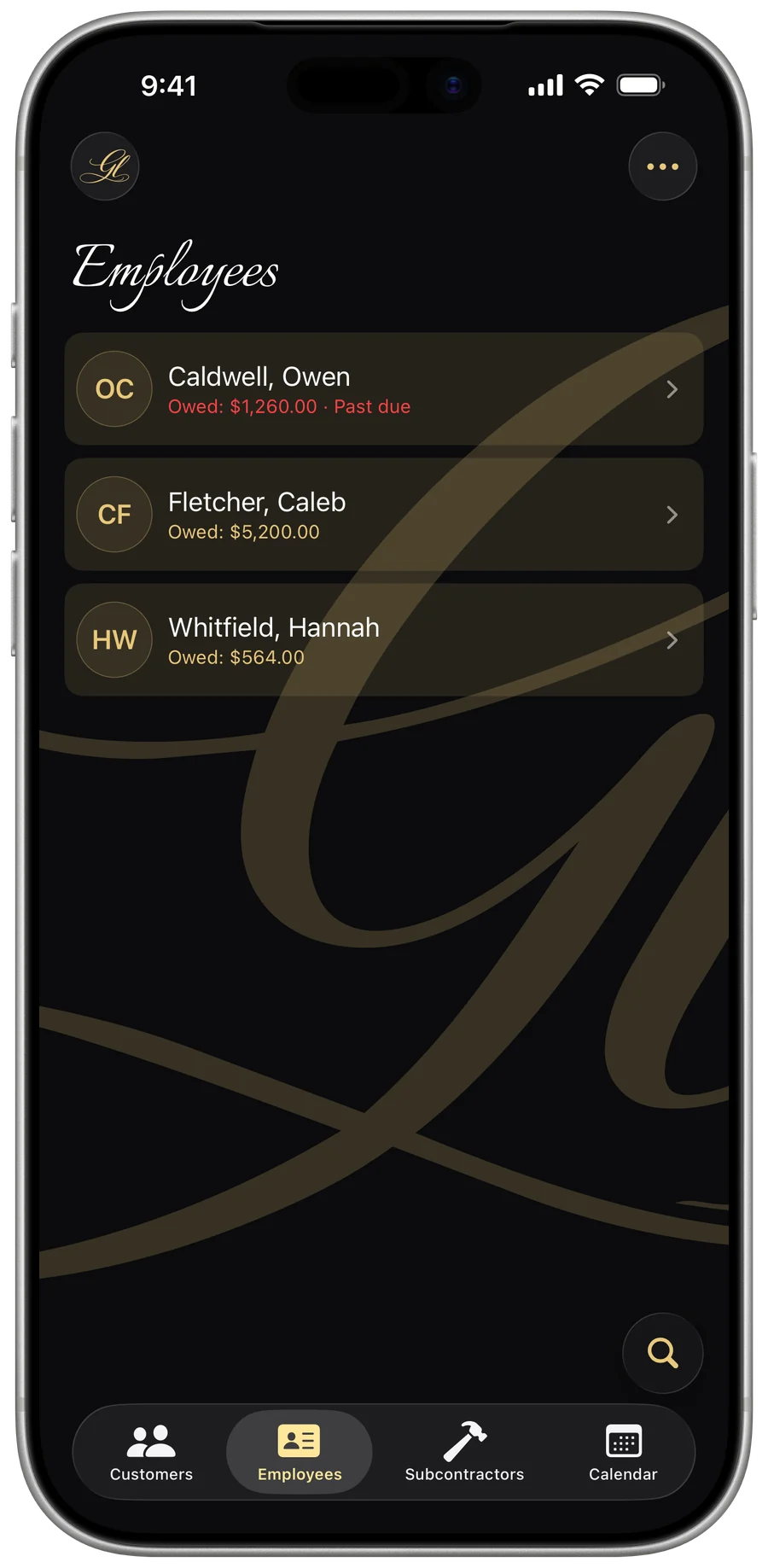
Add your crew
Build a staff record by typing it in, or pull a name, phone, and email straight from your phone’s contacts. First or last name is all it takes to save.
- Open the Employees tab and tap + (top right). On iPad, the + sits at the top of the employee-list column.
- Tap “Import from Contacts” to auto-fill a name, phone, and email — or just type them in.
- Fill in at least a first or last name, then add email and phone under Contact.
- Set up Pay, Employment, and any Notes, then tap Save — the new employee opens automatically.
- Import from Contacts auto-fills name, phone, and email (shows up only when adding, not editing).
- A profile photo you can pick from your library and crop, or remove anytime.
- Free-form notes, plus a “Save to Contacts” action that pushes the employee back into your phone.
- Search the team by name, email, or phone; swipe a row to delete.
Free tier covers up to 2 employees — adding a 3rd opens the upgrade paywall. Viewing, editing, and exporting your existing people stays free even if a subscription lapses.
Set their pay, frequency, and payday
Choose hourly or salary, enter the rate or annual figure, pick how often they’re paid, and anchor a known payday — the app rolls every future payday forward from there.
- In the employee form, open the Pay section.
- Tap the Pay type control to pick Hourly or Salary.
- Enter the hourly rate, or the annual salary for salaried staff.
- Tap Pays to choose a frequency, set Next payday to a real upcoming date, then tap Save.
- Pay type: Hourly or Salary.
- Pay frequency: Weekly (52/yr), Every 2 weeks (26/yr), Twice a month (24/yr), or Monthly (12/yr).
- Salary is auto-divided into per-period paychecks; the next-payday math handles weekly, biweekly, the 15th-and-last-day semimonthly, and monthly correctly — including short months.
- Record a hire date and an Active toggle; inactive staff get an “Inactive” badge and keep their full history.
Hourly is straight time only — there’s no overtime multiplier. The app tracks gross pay; it does not withhold taxes.
Log time three ways: a clock-in range, an hour count, or a flat amount
For hourly staff, one Log Hours screen takes the day however you have it — the actual clock-in and clock-out times, a plain number of hours, or a flat dollar amount that isn’t tied to hours at all. Tag which customer the work was for, and the entry is on the books.
- Open an employee and tap “Log hours” on the Payroll card.
- Pick how to enter it: Range (start and end times), Hours (a plain hour count), or Dollars (a flat amount).
- Fill in the times, hours, or amount — Range and Hours show the dollar value as you go.
- Optional: pick the customer the work was for under Job, add a note, then tap Save.
- Range mode does the math from the clock-in and clock-out times — and the end can land on the next day for overnight shifts.
- Hours mode has one-tap buttons for common days (4, 6, 8, 10, or 12 hours); Dollars records a flat amount owed, not tied to hours.
- The pay rate is pre-filled from the employee’s saved rate but editable per entry — a one-time override for that day only, with a “Reset to saved rate” tap-back. The saved rate never changes.
- The rate is snapshotted onto each entry when you log it, so labor-cost history stays correct even after a raise.
- Tap any entry to edit or delete it, or “View All” for the full history with All / This year / Custom date ranges, search, and a running total.
Salaried staff don’t log hours — their pay accrues on its own, and the same button reads “Log bonus” instead (next section).
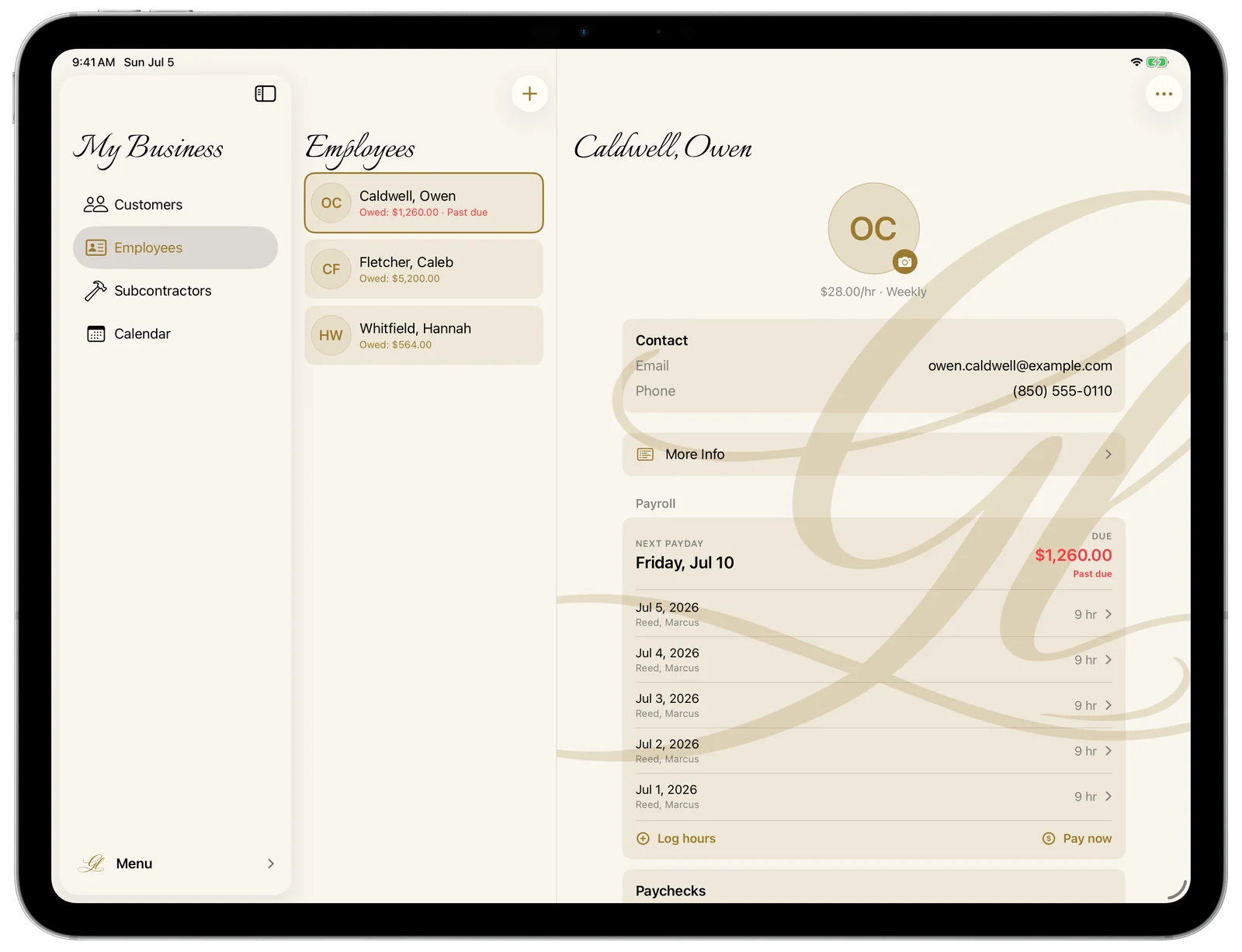
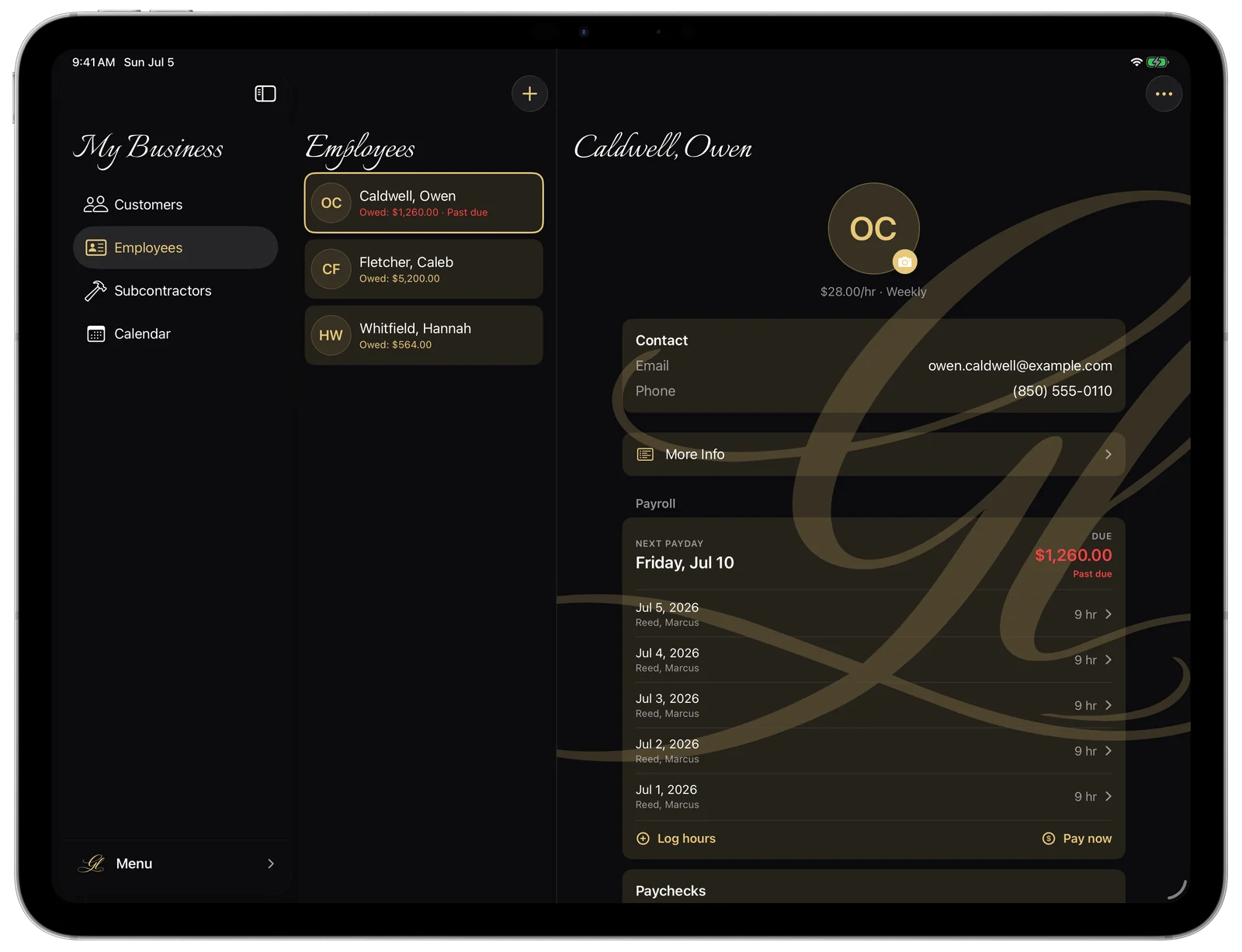
Salary runs itself — bonuses are one tap
A salaried employee’s paycheck needs no logging at all: each pay period, one period’s worth of the annual figure is automatically what’s owed. When you want to pay extra, Log Bonus adds a flat amount on top of the standing paycheck.
- The per-period amount is the annual salary divided by paychecks per year, from the frequency you set — nothing to enter, ever.
- Log Bonus takes a date, an amount, and an optional note; it’s added to what’s owed until it’s paid.
- Bonuses stay fully editable and deletable — anything the app does automatically, you can always correct.
Know what’s owed — and what’s past due
Every employee row carries a live “Owed” amount: gold while it’s building toward the upcoming payday, and red with a “Past due” tag once a payday has come and gone with unpaid work still on the books.
- Open the Employees tab — each row shows “Owed” with the amount accrued so far.
- Open an employee — the Payroll card shows the next payday, the amount due, and the recent entries beneath it.
- Hourly owed = every unpaid entry at its snapshotted rate. Salary owed = one pay period’s worth plus any unpaid bonuses.
- Gold means on track for the upcoming payday (including payday itself); red plus “Past due” means a payday slipped by unpaid.
- A heads-up appears on an employee when their logged hours pass 40 in the current week.
The over-40 flag is informational only — pay stays straight time, with no automatic overtime calculation.
Pay Now — settle up in full, or in part
When it’s time to pay, one button settles the books. The gross is pre-filled with everything owed — take it as is, or enter a smaller amount and the payment is applied to the oldest unpaid work first, with the rest staying owed for next time.
- On an employee’s Payroll card, tap “Pay now.”
- The Gross is pre-filled with everything owed — keep it, tap “Pay in full,” or enter a smaller amount for a partial payment.
- Optional: toggle “Include bonus” to pay a one-time bonus on top of this check.
- Pick a payment method, confirm the paid-on date (today by default), add a note if needed, then tap Save.
- Partial payments settle the oldest unpaid work first — what’s left stays owed, down to the exact dollar.
- Pay more than what’s owed and the extra simply rides on that paycheck as additional pay — never a confusing credit against future paydays.
- Methods: Cash, Check, Card, Bank transfer, Zelle, Venmo, Cash App, Apple Cash, PayPal, Google Pay, Square, Stripe, or Other — defaulting to however the last check went out.
- Reopen any paycheck to fix its gross, date, method, or note — or delete it, and the pay it covered goes back to owed.
- Tap “View All” for the full paycheck ledger with date-range filtering, search, and a gross total.
What’s owed is tracked by which check covered which work — not by date — so a forgotten or backdated entry still correctly shows as owed. And if a salaried employee was already paid this period, the app says so before you record a second check; it never blocks you.
Year-to-date totals at a glance
Each employee’s “This year” card keeps a running tally for the current calendar year, so the numbers are ready whenever you — or your accountant — need them.
- Gross paid year-to-date.
- Total hours logged this year.
- Number of paychecks this year.
Hand your accountant a clean year-end
At W-2 time, export two CSVs that hold exactly what an accountant needs — a per-employee wage summary and a line-by-line paycheck ledger — for whichever tax year you pick.
- Open the Employees tab and tap the ••• (More) button, top right.
- Pick the tax year — this year or any of the four before it. The app pre-selects the most recent year with pay activity, so a January export points at last year on its own.
- Tap “Year-End Report.”
- Choose where to send the two CSV files in the share sheet — Mail, Files, or anywhere else.
- Wage summary columns: Employee, Pay type, Rate, Gross paid (year), Hours (year), Paychecks (year).
- Paycheck ledger columns: Employee, Paid on, Period start, Period end, Gross, Hours, Method, Note.
- Scoped to the tax year you pick, with the year in the filename and Excel-friendly encoding.
- Inactive employees are still included if they were paid that year — they still need a W-2.
By design the app tracks gross pay only. It does not file or generate W-2s, withhold taxes, or capture SSN, W-4, or I-9 — your accountant or payroll service handles filing from these CSVs.