

Book the work, and let the calendar tell you when you’re free
Put every job on one calendar in seconds — from scratch, or straight off an accepted estimate or invoice. The app figures out your next open day and every gap between bookings, repeats recurring visits for you, and respects your real workdays, hours, and holidays. When a job is done and paid in full, it’s ready to close out with a completion package.
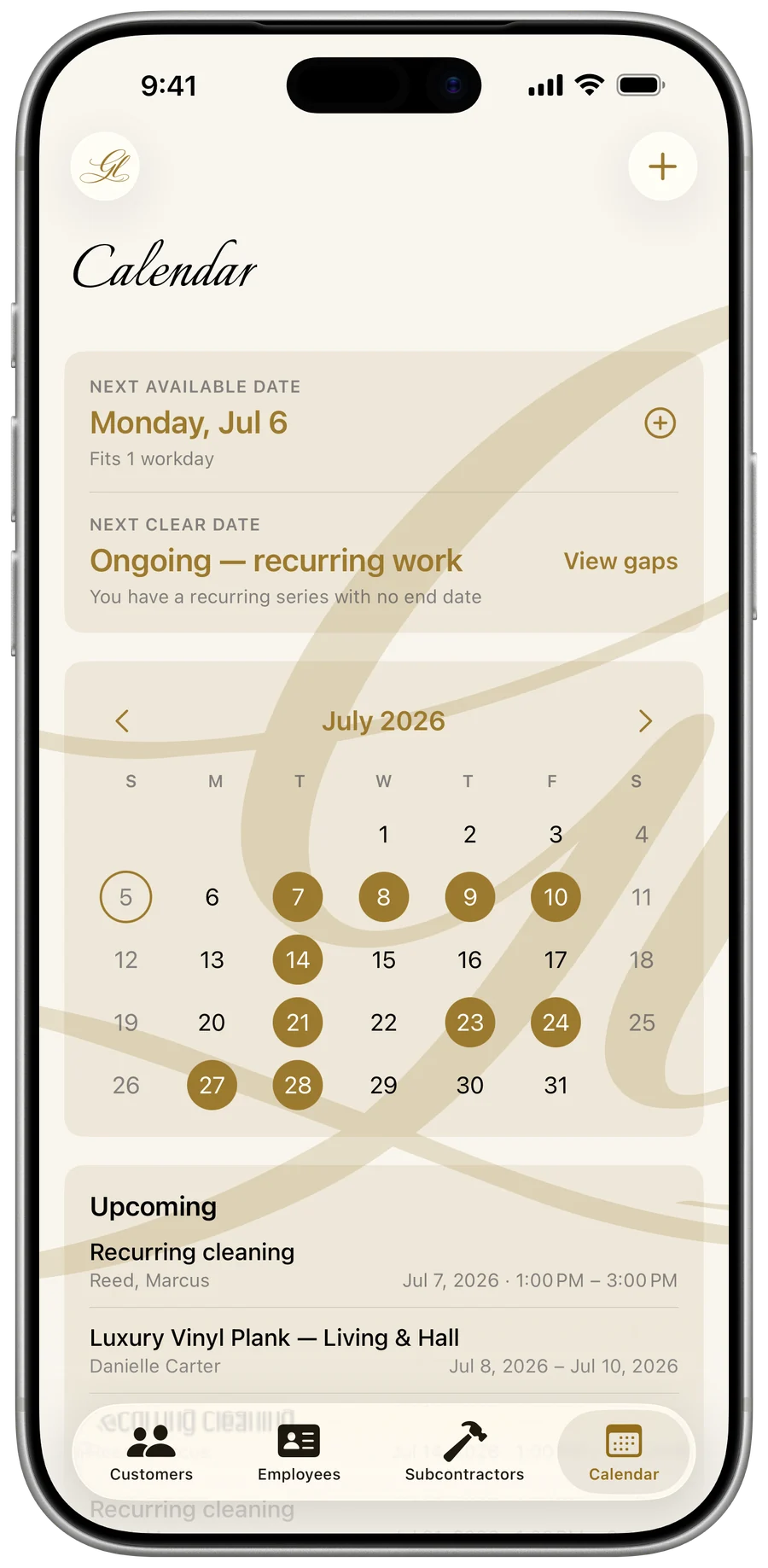
Book a job onto the calendar
Open the Calendar tab and tap +. Start a job from scratch — a verbal price or a standing handshake deal — or pull one straight from an accepted estimate or invoice so the title, customer, and service address come along.
- Tap + in the top-right of the Calendar tab.
- Choose New job to start from scratch, or From an estimate or invoice to pull one in.
- Pick a start date and set the length in workdays — weekends and off-days are skipped automatically.
- Add notes if you like, then save it onto the calendar.
- All-day jobs (project work) run across whole workdays; timed jobs (service calls) block just a window — so two short jobs can share a day.
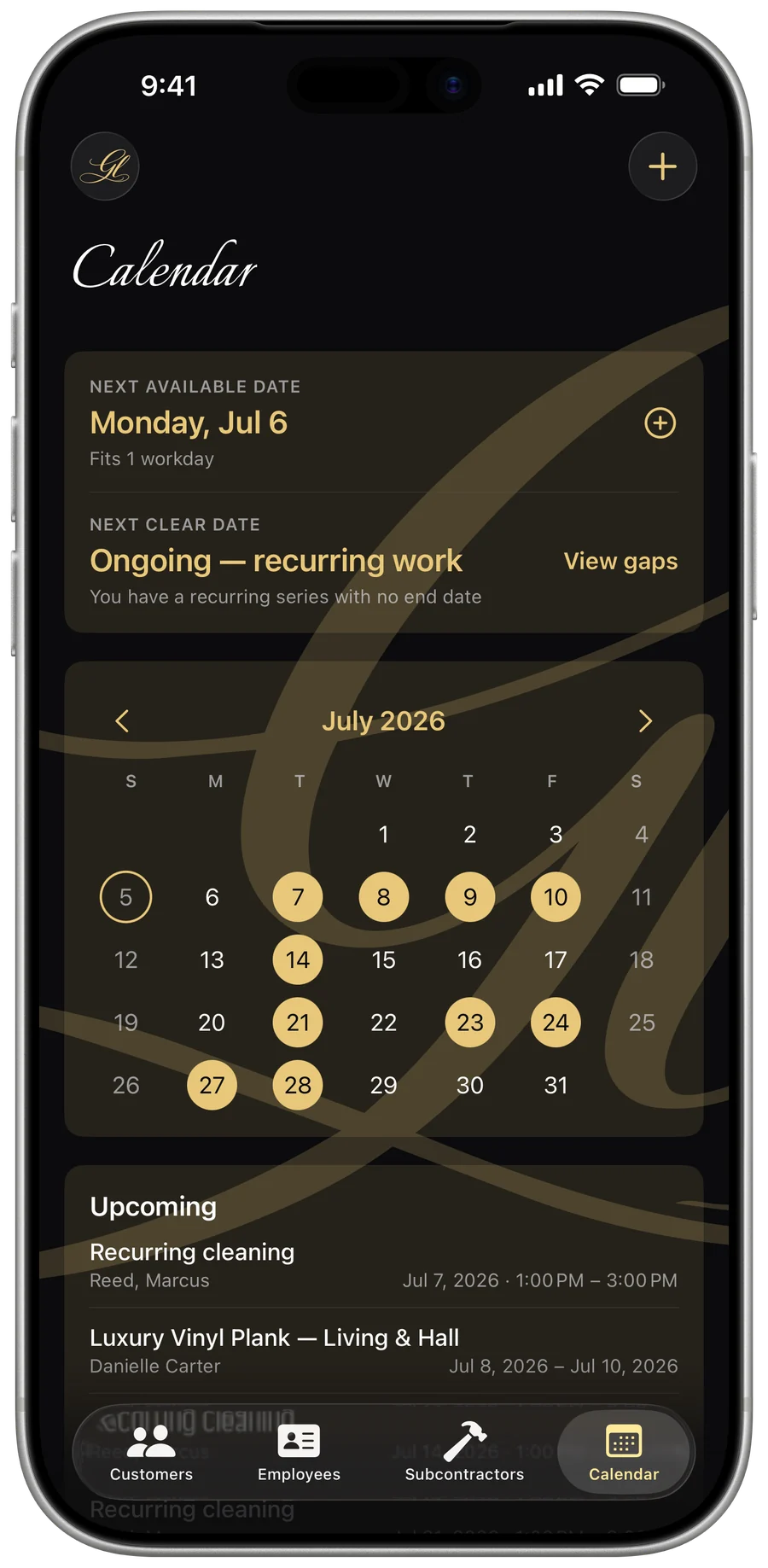
- Booked days fill in gold on the month grid; today gets a gold ring.
- The Upcoming agenda lists your next jobs with customer and date at a glance.
Free to start: up to 15 jobs on the free tier, unlimited with a subscription.
Let the app find your next open day
The availability banner does more than show a free date — it reads your booked work and tells you two different things, each one tap from a pre-filled new job.
- Next available date — the soonest opening that fits between two booked jobs, with its capacity right there: “Fits 3 workdays” or “4 hr free” for a window between timed calls.
- Next clear date — the first open day after your last booking, your open-ended runway with nothing booked behind it.
- Tap either row and a new job opens pre-filled to that date and length, so booking into your own free time is a couple of taps.
If you’re fully open with nothing booked ahead, there’s no bounded gap to show — the banner just points you at your next clear workday.
See every gap in the next 90 days
Tap View gaps from the availability banner for a full list of openings before your booked work — multi-day runs for a big project, and the free windows left between timed appointments on a partly-booked day.
- From the banner, tap View gaps.
- Scan each opening with its date range and capacity.
- Tap one to schedule a job into it — the new job is pre-filled to that exact range.
The open-ended stretch after your last job isn’t listed as a gap — that’s availability, not a hole to fill, and it shows as your next clear date instead. Short windows below a half hour are skipped.
Repeat recurring work automatically
Set a job to repeat weekly, every two weeks, or monthly — for a cleaning route, a maintenance contract, anything that comes back. Each occurrence lands on the calendar and counts toward your availability, so the app never offers you a day a recurring visit already owns.
- End the series never, on a date, or after a set number of visits.
- An open-ended series shows up as “Ongoing — recurring work” on your next clear date.
- Monthly visits anchor to the original day of the month and clamp cleanly — a job on the 31st falls on Feb 28, then back to Mar 31, instead of drifting earlier each month.
Group phased work into a project
Some work arrives as one job; some arrives as a remodel in three phases. A project bundles several jobs under one name, rolls their billing up to a single total, and keeps the signed master agreement for the whole engagement. It stays invisible until you reach for it — if you never group jobs, you never see a project screen.
- Open a job and tap ••• → “Add to project.”
- Pick one of that customer’s existing projects, or type a name and tap “Create & add.”
- Open the project from the card on any of its jobs, or browse them all under Menu → All Projects.
- The project total rolls up contracted value, invoiced, collected, and balance due across every job in it.
- Upload the signed master agreement once — PDF or image — and a checkmark seal shows it’s on file for the whole project.
- Deleting a project never touches its jobs — they just come un-grouped.
Set your real work schedule
In Settings → Work schedule, tell the app when you actually work. Every availability number across the app — next available, next clear, gaps — is computed from this, and it autosaves as you go.
- Turn each weekday on or off and set its hours; those hours bound the windows offered for timed jobs.
- Add time-off ranges for vacations, and one-off days off that aren’t on the holiday list.
- Add a specific-date override to work a single Saturday or block one Tuesday — overrides win over everything else.
- Booked days, holidays, time off, and blocked dates are all skipped when the app counts workdays.
U.S. holidays, built in and offline
The app ships its own American holiday catalog and does the date math itself — no calendar permission, no internet needed. The days most people close for are already on; everything else is there but off, so there’s no long list to uncheck.
- Grouped Federal, Common closures, and Cultural & religious — toggle any one on or off.
- Movable dates are computed correctly, including Good Friday off Easter and Black Friday off Thanksgiving.
- Holidays you take off are skipped just like weekends when the app books and counts free days.
A soft guard against double-booking
With “book one job at a time” on, the app warns you when a new booking overlaps work you’ve already scheduled — but it never blocks you. Stack two jobs on a day on purpose if that’s the call; the warning is a heads-up, not a wall.
- Set a start date and length that overlap an existing job.
- Tap Schedule — the app asks because the dates overlap.
- Choose Schedule anyway to stack them, or Cancel to pick another day.
Close out a finished job
Mark a job complete to stamp its completion date and start the warranty clock. Once the job is also billed and paid in full, it’s ready for a completion package — a single PDF with the job summary, a paid-in-full receipt, and the warranty — the close-out artifact that tells a customer the work is truly done.
The completion package only unlocks once the job is both completed and fully paid. See Documents & packages for how to generate and send it.