

Bill the job, get paid, and keep the books clean
Turn any job into a polished, branded invoice — group the work, bill a deposit or a milestone, then let customers pay by card and log every payment as it comes in. Add a Stripe “Pay this invoice” button, send a receipt that asks for a 5-star review, and handle mid-job scope changes with signature-ready change orders. From the first deposit to “paid in full,” it’s all on one screen.
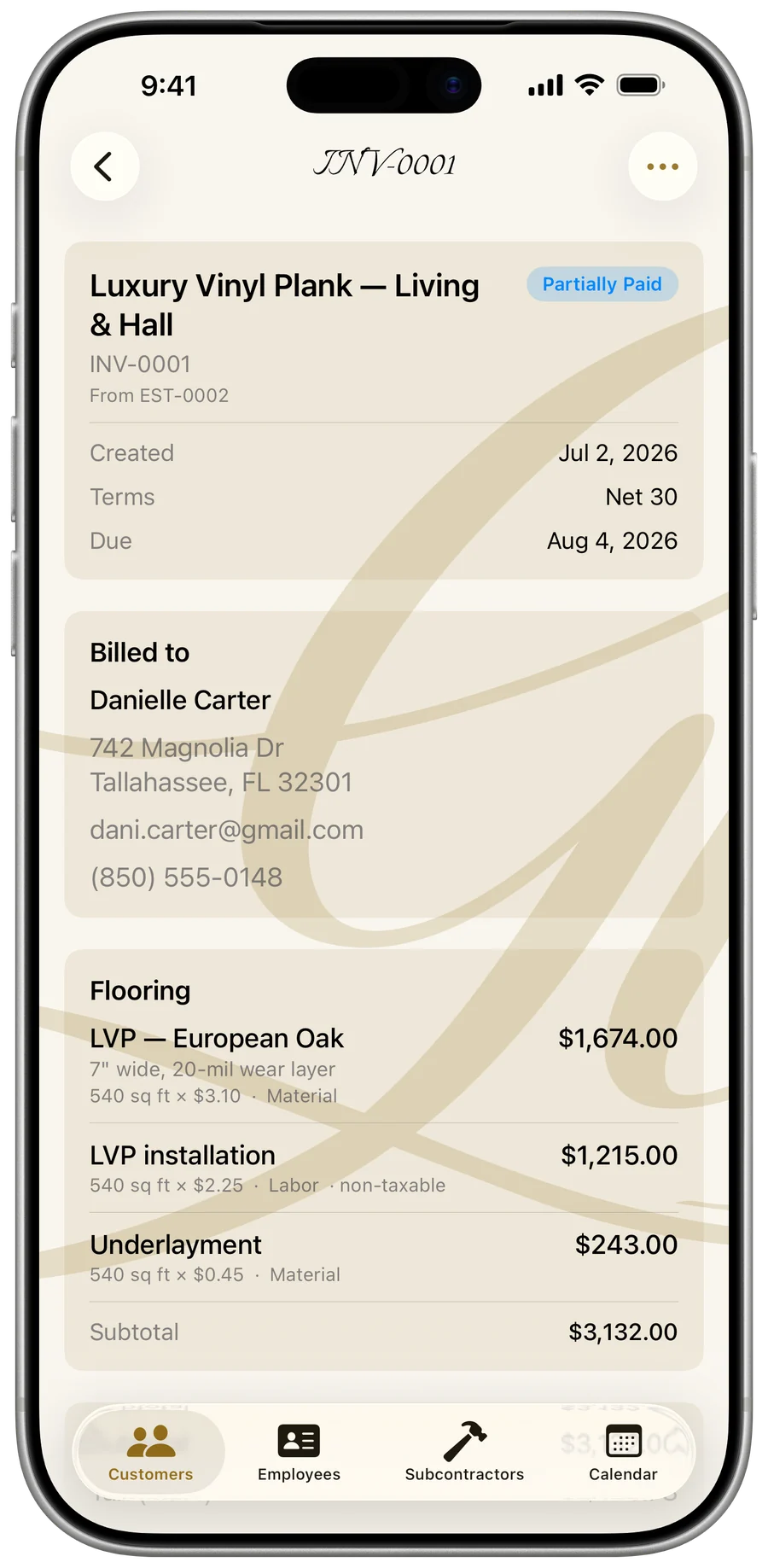
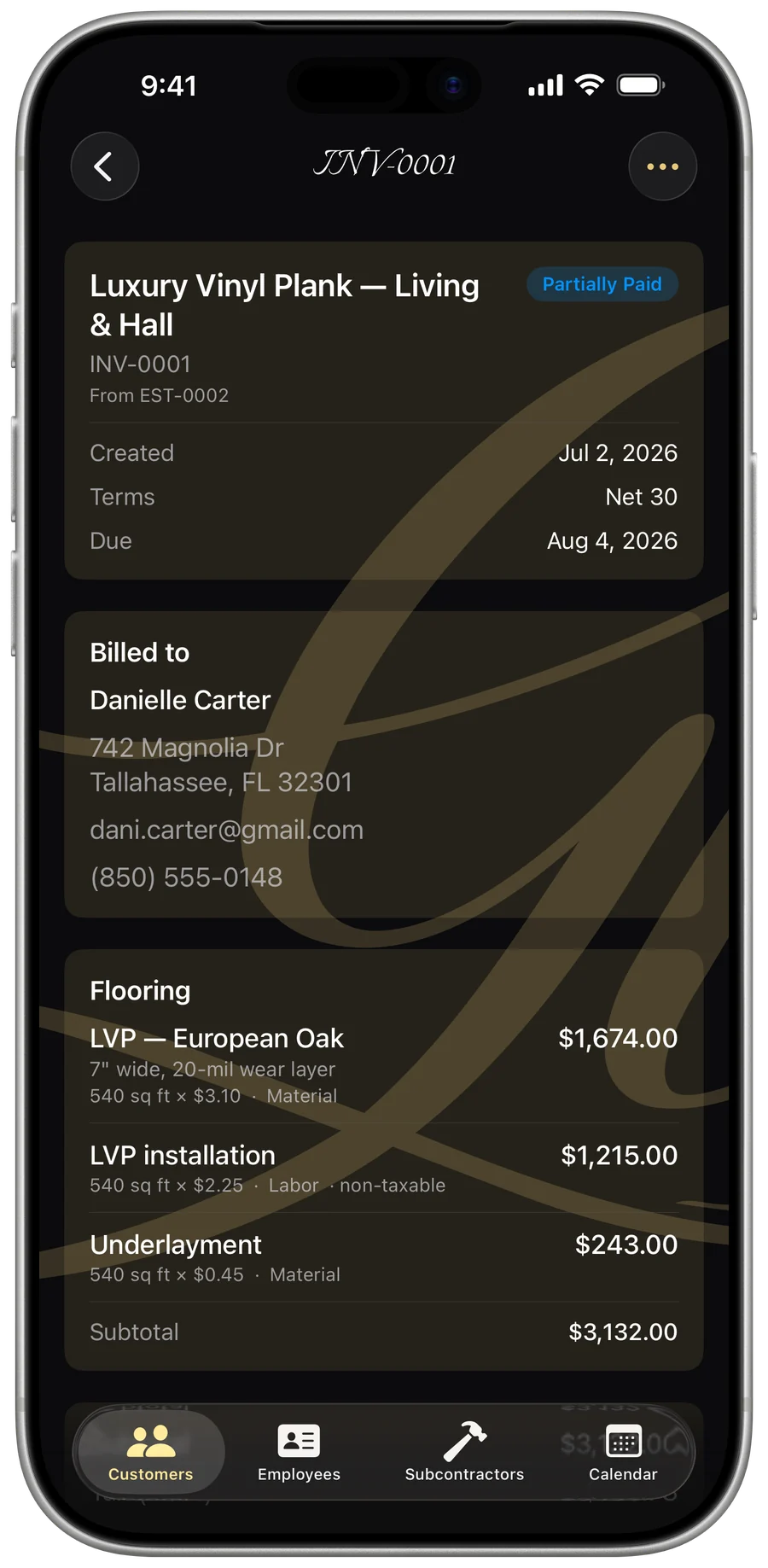
Build an itemized invoice
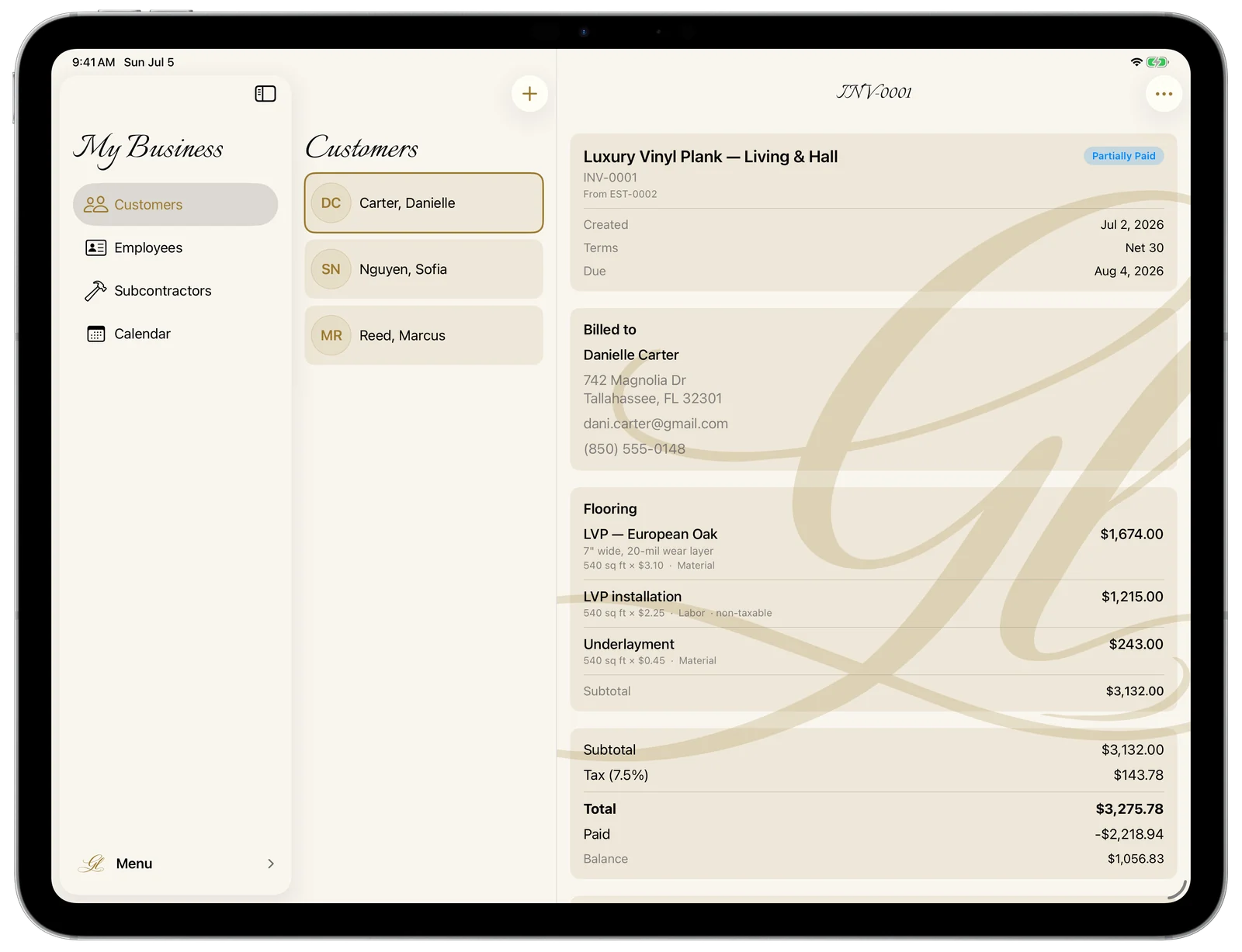
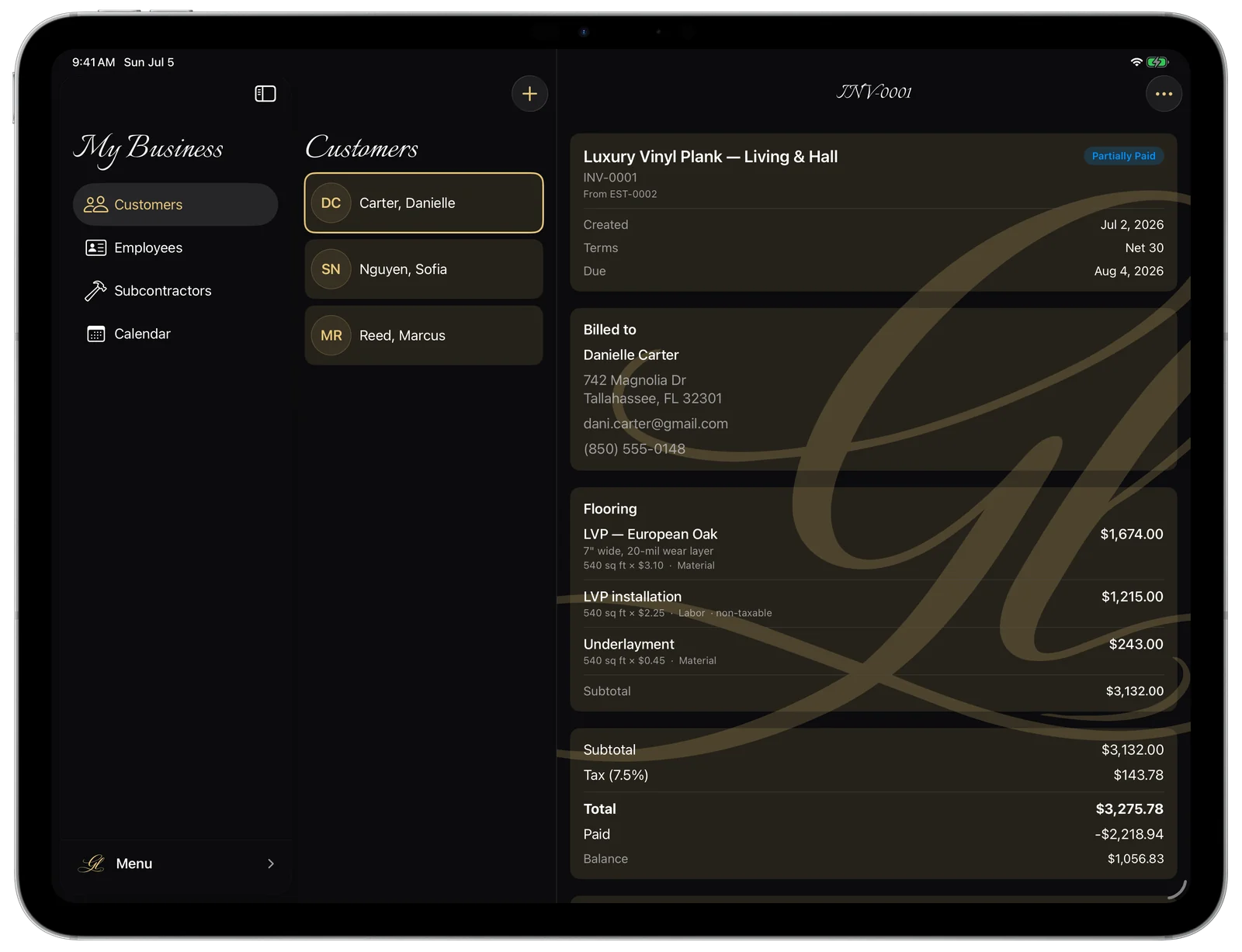
Every invoice belongs to a customer and is auto-numbered — INV-0001, INV-0002, and so on. The customer’s details are snapshotted onto the document, so the invoice stays accurate even if their contact info changes later. A live summary tallies subtotal, discount, tax, and total as you work.
- Open a customer and go to their Invoices list.
- Tap + (or the ••• menu → New Invoice).
- Give it a job title — that’s the only thing required to save.
- Pick a status and payment terms, then add your groups and line items.
- Tap Save in the top-right.
- Group the work into named sections — “Demo,” “Tile,” “Cleanup” — each with its own note and a running subtotal.
- Price each line with quantity, unit, and price; mark it Labor or Material, and the name field auto-completes from your own invoice and estimate history.
- Add a per-line discount (% or $) on top of any whole-invoice discount, and toggle taxable per line.
- Add an optional service / job-site address when the work isn’t at the billing address — type it in or use the built-in address search.
- Payment terms: Due on receipt, Net 15, Net 30, or a custom date — the due date computes itself.
Free to start: up to 15 invoices on the free tier, unlimited with a subscription.
Statuses that keep themselves honest
You set Draft or Sent. The app handles the rest — record payments and let the due date pass, and Paid, Partially Paid, and Overdue appear on their own. The status shows as a color-coded badge in your lists, on the detail screen, and on the PDF.
- You control: Draft, Sent.
- Computed for you: Paid (balance settled), Partially Paid (some in, balance remaining), Overdue (sent, past due, and unpaid).
- Color-coded badge — gray for draft, blue for sent or partial, orange for overdue, green for paid.
- A fully-comped $0 invoice reads “Paid,” not stuck as Overdue.
There’s no auto-reminder, recurring billing, or late-fee automation — statuses report the state of the money, they don’t chase the customer for you.
Bill a deposit, a milestone, or a progress draw
You don’t always bill the whole balance at once. Set an “Amount due now” — a deposit to start or a milestone draw — and the invoice, PDF, email, and text all headline that figure instead of the full total. As payments land, the request draws down toward $0 automatically.
- On the invoice detail, tap ••• → Set amount due.
- Enter the amount to request now and a label (e.g. “30% progress payment”).
- Save — the document now leads with that amount due now.
- When the payment comes in, record it; the request shrinks automatically.
- Set the next milestone and resend.
- Leave it at $0 to request the full balance.
- A request is capped at the remaining balance — you can’t over-ask.
- For one scheduled job billed across several invoices, each invoice’s Payments card shows an “Earlier on this job” history so nothing gets double-counted.
- Later progress draws start blank on purpose, so you never re-bill the same scope.
Record a payment
Log any payment against an invoice — amount, date, method, and a note. The amount pre-fills to what you asked for now, not the whole balance, and you’re blocked from recording more than the balance due.
- On the invoice detail, tap “Record payment.”
- Confirm or adjust the amount and set the date.
- Choose a payment method, add an optional note, and tap Save.
- Thirteen payment methods: Cash, Check, Card, Bank transfer, Zelle, Venmo, Cash App, Apple Cash, PayPal, Google Pay, Square, Stripe, or Other — whatever way the money actually arrived.
- Overpayment protection — amounts above the balance due are blocked with a clear warning.
- Every invoice tracks total, paid-to-date, balance due, and the current amount due now; the balance turns green when it’s fully paid.
- Partially-paid rows show a gold “Balance $X” pill in your lists.
These record money you collect yourself — cash, check, Zelle, Venmo, your own card reader, and the rest. To let a customer pay you by card online, add a Stripe Pay button (below). No recurring billing. USD only.
Let customers pay by card, with Stripe
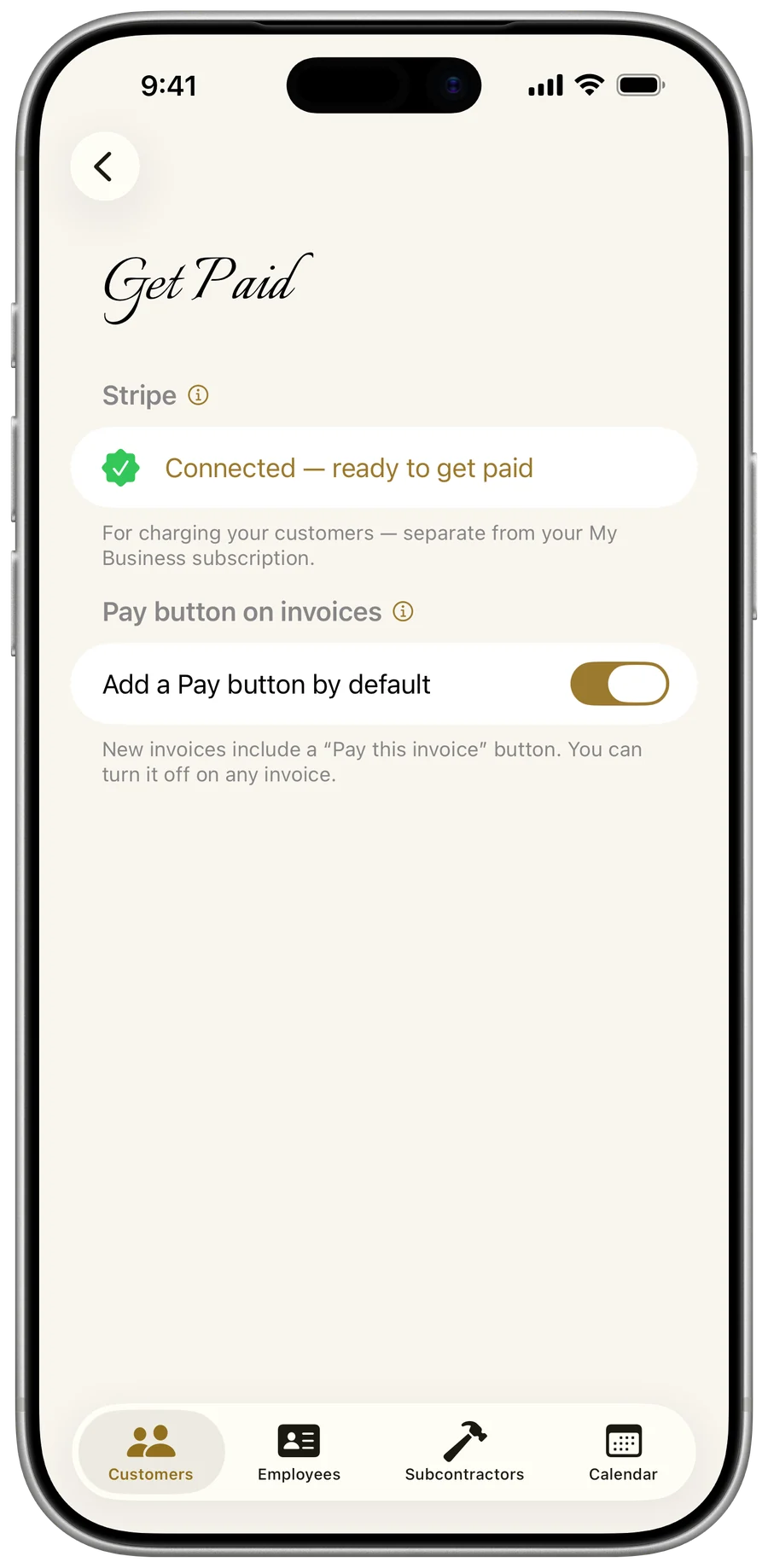
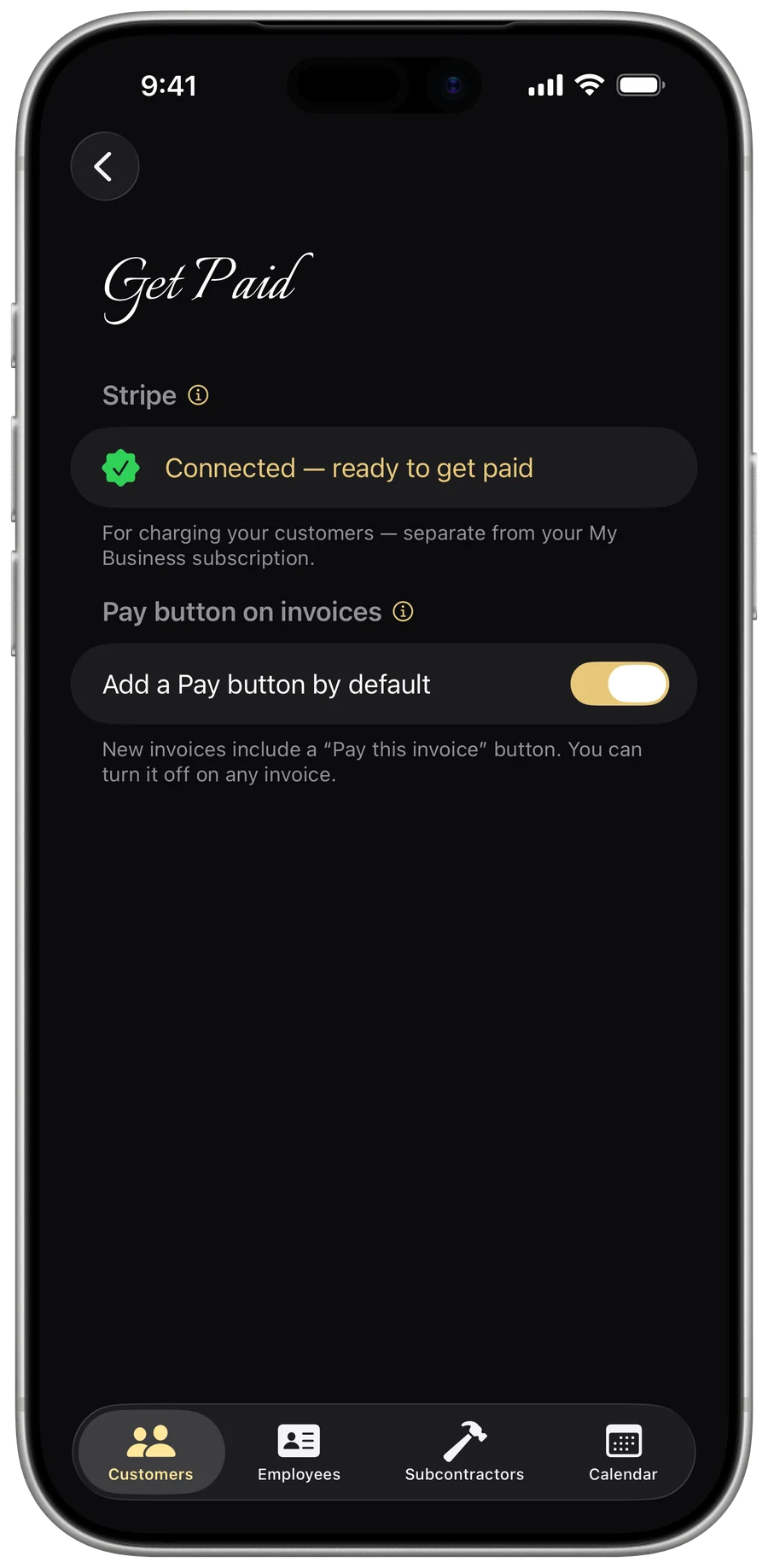
Connect your own Stripe account and My Business adds a “Pay this invoice” button to the invoices you send. Your customer taps it and pays by card on Stripe’s secure page; the money goes straight to your Stripe account, and the app reconciles the payment back onto the invoice — then prompts you to record it. It’s optional, and completely separate from your My Business subscription.
- Open Menu → Payments → “Get Paid by Card,” and tap Connect Stripe account.
- Finish Stripe’s quick, secure setup — it opens Stripe’s own onboarding.
- Choose whether to add a Pay button to every invoice or per invoice.
- Send an invoice the way you always do — it now carries a “Pay this invoice” button.
- When the customer pays, the app reconciles it and asks if you’d like to record it.
- Payments go straight to your own Stripe account — Gold Life never touches or holds your money.
- Stripe’s standard card fees apply; My Business adds no fee of its own.
- The Pay button lives on the invoice you send — email, text, or PDF — there’s never a card form inside the app.
- Set it to “All invoices,” “Choose per invoice,” or “Off” — you stay in control, per invoice.
- Setup uses Stripe’s hosted onboarding; finish or update it anytime from the same screen.
Card processing is handled entirely by Stripe under your own account and their terms; My Business connects the two and records the result. Availability depends on Stripe supporting your business and country.
Send the invoice — and a receipt worth a review
Every invoice renders to a clean, multi-page US-Letter PDF with your logo, business details, and totals. Send it by email or text, or share it anywhere. When a payment lands, send a separate branded receipt — a distinct “Payment received” document, not just the same invoice resent.
- Open the invoice and tap ••• → Preview to review the PDF.
- Choose Email, Text, or Share to send the same branded document.
- To receipt a payment, tap ••• → Send a receipt, pick the payment, and send.
- Email goes out as an HTML message — your logo, a first-name greeting, a summary box (Project, Invoice #, Total, Paid, Balance, Amount due now, Due by), and the PDF attached.
- Receipts lead with “Payment received” / “PAID IN FULL” and show any remaining balance as information only, never as an amount owed.
- When you’ve set a reviews link, the receipt carries a one-tap “Leave us a review” button.
- Customize the subject, intro, and closing wording for invoices and receipts from your business profile.
Email and Text options only appear when the customer has an email or phone and the device can send — otherwise use Share. If your business profile is incomplete, the app prompts you to finish it first so nothing goes out unbranded.
Handle scope changes with change orders
When the job grows or shrinks mid-project, draft a signature-ready change order against the invoice — no spreadsheets, no double-billing. It’s auto-numbered (CO-0001, CO-0002… per invoice), prices added or removed work as charges and credits, and renders to a branded PDF with an “Approved by” signature line so it doubles as a sign-off.
- Open the invoice and tap ••• → New change order.
- Write a summary and add line items — set each as a Charge or a Credit.
- Email, text, or share the branded change-order PDF to your customer for sign-off — the same way you send estimates and invoices.
- Set the status to Approved, Pending, or Declined as it moves along.
- Once approved, tap “Add to invoice” on the invoice’s Change Orders card to bill it.
- Credits are first-class — a change order can remove scope and its total can go negative, shown with a red “−”.
- Approved orders aren’t billed until you tap “Add to invoice” — the app reminds you, so nothing slips onto the bill unasked.
- Once added, items can’t be added twice, and the PDF keeps original vs. revised totals honest.
- An applied change order owns its group of line items on the invoice. Edit the order and the invoice updates to match; decline it, or move it off Approved, and those items come back off automatically — the invoice never bills a stale copy.
- Change-order lines bill at full price and full tax — the whole-invoice discount doesn’t re-rate them — so the invoice matches the signed order to the cent.
Find and manage every invoice
See one customer’s invoices inside their record, or every invoice across the business in the All Invoices view. Each row shows the title, total, number, date, status badge, and balance pill at a glance — and you can schedule a job straight off an invoice without re-entering anything.
- Search by job title, number, customer, or status.
- Multi-select to delete several at once, or swipe a single row — a confirmation warns that payments and line items go with it.
- Tap ••• → Schedule to book the work on your calendar; the booking survives even if you later delete the invoice.
- Orphaned invoices with no customer are flagged for cleanup — they still count in your stats until you handle them.